Open Graph Tags: Complete Guide to Social Media Previews
 Anna Novak
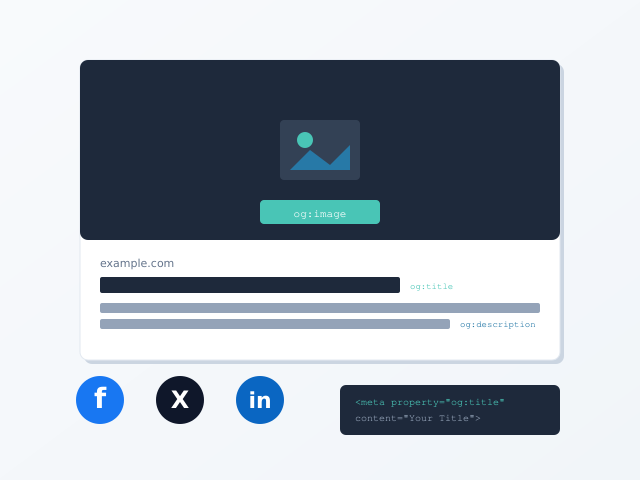
Open Graph tags control how your content appears when shared on social media platforms. Without these meta tags, Facebook, LinkedIn, and other networks guess which image and text to display — often with embarrassing results. A properly configured Open Graph setup ensures your content looks professional and compelling every time someone shares it.
This guide explains everything you need to know about Open Graph tags. You’ll learn which tags matter most, how to implement them correctly, and how to test your setup before publishing. By the end, you’ll create social media previews that drive clicks and engagement.
What Are Open Graph Tags?
Open Graph is a protocol developed by Facebook in 2010 that allows web pages to become rich objects in a social graph. In practical terms, Open Graph tags are HTML meta elements that tell social platforms what title, description, and image to display when someone shares your URL.
When you share a link on Facebook, LinkedIn, or Pinterest, the platform’s crawler visits your page and looks for Open Graph tags. If found, it uses that information to generate a preview card. If not found, the platform attempts to extract relevant content automatically — usually with poor results.
Consider the difference: a page without Open Graph tags might display a random image from your sidebar, a truncated title, and the first paragraph of text regardless of relevance. A page with proper Open Graph tags displays exactly what you intend — your hero image, a compelling title, and a description written specifically to encourage clicks.
Why Open Graph Tags Matter for Marketing
Social media sharing drives significant traffic for most websites. When your content gets shared, the preview card essentially becomes a free advertisement. Consequently, optimizing that preview directly impacts your click-through rates.
Brand Consistency
Open Graph tags ensure your brand appears consistently across all social platforms. Without them, each platform might select different images or truncate your titles differently. This inconsistency undermines brand recognition and professionalism.
Click-Through Rates
Well-crafted previews dramatically outperform auto-generated ones. A compelling image paired with benefit-focused copy encourages users to click. Studies suggest that optimized social previews can improve click-through rates by 30-50% compared to default previews.
Content Control
Sometimes you want your social preview to differ from your page’s actual title or meta description. Perhaps your SEO title includes keywords that feel awkward in a social context. Open Graph tags let you customize the social experience independently from on-page SEO.
Essential Open Graph Tags
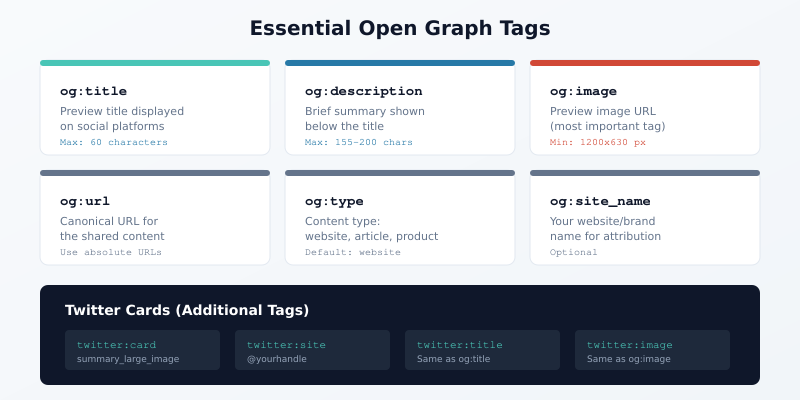
While the Open Graph protocol supports many tags, most websites only need a handful for effective social sharing.
og:title
This tag specifies the title displayed in social previews. Keep it under 60 characters to avoid truncation on most platforms.
<meta property="og:title" content="Your Compelling Title Here">Best practices for og:title include:
- Front-load important words: Put key information at the beginning in case of truncation
- Create curiosity: Make users want to click to learn more
- Avoid clickbait: Deliver on the promise your title makes
- Skip your brand name: Unless brand recognition is your primary goal
og:description
This tag provides a brief summary of your content. Aim for 155-200 characters — long enough to be informative, short enough to avoid truncation.
<meta property="og:description" content="A brief but compelling description that encourages clicks.">Effective descriptions answer the question: “Why should I click this?” Focus on the benefit or value the reader will receive rather than simply describing what the page contains.
og:image
Arguably the most important Open Graph tag, og:image specifies the preview image. This single element often determines whether someone clicks or scrolls past.
<meta property="og:image" content="https://example.com/image.jpg">Image requirements vary by platform, but these guidelines work universally:
| Specification | Recommendation |
|---|---|
| Minimum size | 1200 × 630 pixels |
| Aspect ratio | 1.91:1 (landscape) |
| File size | Under 8MB |
| Format | JPG, PNG, or WebP |
| URL | Absolute (include https://) |
og:url
This tag specifies the canonical URL for your content. Use the same URL you’d use in your canonical link tag.
<meta property="og:url" content="https://example.com/your-page/">Always use absolute URLs including the protocol (https://). Relative URLs may not resolve correctly when shared.
og:type
This tag categorizes your content. The most common values are:
- website: For homepages and general pages
- article: For blog posts and news articles
- product: For e-commerce product pages
- video.other: For video content
<meta property="og:type" content="article">og:site_name
This optional tag displays your website name alongside the content title. It helps with brand recognition without cluttering the main title.
<meta property="og:site_name" content="Your Website Name">Complete Open Graph Implementation Example
Here’s a complete example showing all essential Open Graph tags for a blog article:
<head>
  <!-- Essential Open Graph Tags -->
  <meta property="og:title" content="10 Ways to Improve Your Marketing ROI">
  <meta property="og:description" content="Learn proven strategies to measure and improve your marketing return on investment with real examples.">
  <meta property="og:image" content="https://example.com/images/marketing-roi-guide.jpg">
  <meta property="og:url" content="https://example.com/marketing-roi-guide/">
  <meta property="og:type" content="article">
  <meta property="og:site_name" content="Marketing Insights">

  <!-- Optional but Recommended -->
  <meta property="og:locale" content="en_US">
  <meta property="article:published_time" content="2026-02-03T10:00:00Z">
  <meta property="article:author" content="https://example.com/author/jane-smith/">
</head>
Twitter Cards: The Twitter-Specific Alternative
While Twitter can read Open Graph tags, it prefers its own Twitter Card markup. For optimal results on Twitter (now X), implement both Open Graph and Twitter Card tags.
Essential Twitter Card Tags
| Twitter Card Tag | Purpose | Open Graph Equivalent |
|---|---|---|
| twitter:card | Card type (summary, summary_large_image) | No equivalent |
| twitter:title | Preview title | og:title |
| twitter:description | Preview description | og:description |
| twitter:image | Preview image | og:image |
| twitter:site | Publisher’s Twitter handle | No equivalent |
Twitter Card Types
Twitter supports several card types, but two are most common:
- summary: Small square image with title and description beside it
- summary_large_image: Large landscape image above title and description
For most marketing content, summary_large_image performs better because the larger image captures more attention in busy feeds.
Complete Twitter Card Example
<!-- Twitter Card Tags -->
<meta name="twitter:card" content="summary_large_image">
<meta name="twitter:site" content="@yourhandle">
<meta name="twitter:title" content="10 Ways to Improve Your Marketing ROI">
<meta name="twitter:description" content="Learn proven strategies to measure and improve your marketing return on investment.">
<meta name="twitter:image" content="https://example.com/images/marketing-roi-guide.jpg">
Platform-Specific Considerations
Each social platform interprets Open Graph tags slightly differently. Understanding these differences helps you optimize for your most important channels.
As the creator of Open Graph, Facebook provides the most complete support. Facebook caches preview data aggressively, so changes may not appear immediately. Use the Facebook Sharing Debugger to clear the cache and preview updates.
Facebook recommends images at least 1200 × 630 pixels for high-resolution displays. Smaller images may appear blurry or be cropped unexpectedly.
LinkedIn reads Open Graph tags reliably and displays previews similar to Facebook. However, LinkedIn’s feed layout sometimes crops images differently. Test your previews specifically on LinkedIn if B2B engagement matters to you.
LinkedIn’s Post Inspector tool lets you preview and refresh cached data.
Pinterest uses Open Graph tags but also supports its own Pinterest-specific tags for additional features like rich pins. For basic sharing, Open Graph tags suffice.
Pinterest strongly favors vertical images (2:3 ratio), which conflicts with the landscape format other platforms prefer. If Pinterest traffic matters significantly, consider implementing Pinterest-specific image tags.
Slack and Discord
Messaging platforms like Slack and Discord also read Open Graph tags to generate link previews. These platforms typically display previews similarly to Facebook, making standard Open Graph implementation effective.
Common Open Graph Mistakes
Even experienced developers make these Open Graph errors. Avoiding them ensures your previews work correctly across platforms.
Using Relative Image URLs
Social platform crawlers can’t resolve relative URLs. Always use absolute URLs including the protocol:
<!-- Wrong -->
<meta property="og:image" content="/images/preview.jpg">

<!-- Correct -->
<meta property="og:image" content="https://example.com/images/preview.jpg">
Images Too Small
Platforms may refuse to display images below minimum size requirements, falling back to text-only previews or auto-selected images. Always use images at least 1200 × 630 pixels.
Missing og:image Tag
Without an explicit og:image, platforms guess which image to use. They might select your logo, a sidebar advertisement, or a completely irrelevant image. Always specify the exact image you want displayed.
Duplicate Tags
Multiple Open Graph tags with the same property confuse crawlers. Ensure each tag appears exactly once. This commonly happens when themes and plugins both output Open Graph tags.
HTTP Images on HTTPS Pages
Mixed content warnings can prevent images from loading. If your site uses HTTPS, ensure all Open Graph image URLs also use HTTPS.
Ignoring Caching
Social platforms cache Open Graph data to reduce server load. After updating tags, use platform debugging tools to refresh the cache. Otherwise, old previews may persist for days or weeks.
Testing Your Open Graph Tags
Before publishing content, verify your Open Graph implementation using official platform tools.
Facebook Sharing Debugger
Facebook’s debugger shows exactly how your page will appear when shared. It also displays any errors or warnings about your tags. Access it at developers.facebook.com/tools/debug/.
Twitter Card Validator
Twitter’s validator previews your Twitter Card and confirms your tags are correctly implemented. Access it at cards-dev.twitter.com/validator.
LinkedIn Post Inspector
LinkedIn’s inspector previews shares and lets you refresh cached data. Access it at linkedin.com/post-inspector.
General Validation Tools
Tools like OpenGraph.xyz and Metatags.io let you test previews across multiple platforms simultaneously. These are particularly useful during development.
Open Graph for Different Content Types
Different page types benefit from different Open Graph strategies.
Blog Articles
For articles, use og:type=”article” and include article-specific tags like publication date and author. The image should relate directly to the article content rather than being a generic blog graphic.
Product Pages
E-commerce pages should use og:type=”product” and display the product image prominently. Include price and availability in the description when relevant.
Homepage
Homepages typically use og:type=”website” with a general brand image and value proposition description. The title should focus on your brand and primary offering.
Landing Pages
Campaign landing pages benefit from customized Open Graph tags matching the campaign messaging. The preview should reinforce whatever brought the user to share the link in the first place.
Implementing Open Graph in Popular Platforms
Most content management systems offer built-in or plugin-based Open Graph support.
WordPress
SEO plugins like Yoast SEO and Rank Math automatically generate Open Graph tags based on your content. They also provide fields to customize the social title, description, and image separately from SEO fields.
Shopify
Shopify generates basic Open Graph tags automatically from product information. For customization, edit theme files or use apps from the Shopify App Store.
Custom Websites
For static sites or custom applications, add Open Graph tags directly to your HTML head section. Our Meta Tags Generator creates properly formatted Open Graph and Twitter Card markup instantly — just enter your content details and copy the generated code.
Advanced Open Graph Features
Beyond basic implementation, Open Graph supports advanced features for specific use cases.
Multiple Images
You can specify multiple og:image tags, and platforms will let users choose which image to display. This is useful when different images work better for different audiences.
<meta property="og:image" content="https://example.com/image1.jpg">
<meta property="og:image" content="https://example.com/image2.jpg">
Image Dimensions
Explicitly declaring image dimensions helps platforms render previews faster:
<meta property="og:image:width" content="1200">
<meta property="og:image:height" content="630">
Video Content
For video pages, use og:video tags to enable inline video playback on supported platforms:
<meta property="og:video" content="https://example.com/video.mp4">
<meta property="og:video:type" content="video/mp4">
<meta property="og:video:width" content="1280">
<meta property="og:video:height" content="720">
Monitoring Open Graph Performance
After implementing Open Graph tags, monitor their effectiveness through social analytics.
Track Share Counts
Monitor how often your content gets shared. Increasing shares after Open Graph optimization indicates your previews are more compelling.
Analyze Click-Through Rates
Compare click-through rates from social traffic before and after optimization. Use UTM parameters to track social traffic accurately in your analytics platform.
A/B Test Images
Some platforms allow you to test different preview images. Even without formal testing tools, you can change images periodically and compare engagement rates.
Key Takeaways
Open Graph tags are essential for controlling how your content appears on social media. Here are the critical points to remember:
- Always include og:title, og:description, og:image, and og:url: These four tags handle most social sharing needs
- Use large, high-quality images: At least 1200 × 630 pixels in landscape orientation
- Implement Twitter Cards alongside Open Graph: Twitter prefers its own markup
- Test before publishing: Use platform debuggers to verify your implementation
- Clear cache after updates: Platforms cache aggressively; use debugging tools to refresh
- Use absolute URLs: Always include https:// in image and URL tags
Generate Your Open Graph Tags Now
Ready to implement Open Graph tags on your website? Our free Meta Tags Generator creates properly formatted Open Graph and Twitter Card markup in seconds. Enter your title, description, and image URL to generate code you can copy directly into your pages. Preview how your content will appear on Facebook, Twitter, and LinkedIn before publishing.